Download the NR app for Windows (Windows 10/11, 64-bit, approx. 100 MB) and install it. Download and sign-in are free.
Guide & Getting Started
How to set up the NR app and activate your scripts — plus an AutoHotkey guide for the download option.
- 1
Download & install the NR app
- 2
Sign in with your account
Sign in to the app with the email address you used at checkout. Your packages and single scripts are unlocked automatically.
No account yet? Create one with exactly your checkout email — your orders are matched to it automatically.
Create account / sign in - 3
Activate a subscription (for live recoil)
To activate live recoil in the app you need an active NR subscription (from €4.99/month, cancel monthly).
Without a subscription, use your scripts as files — via the "App + Download" purchase option (guide below).
View plans - 4
Pick a weapon & get going
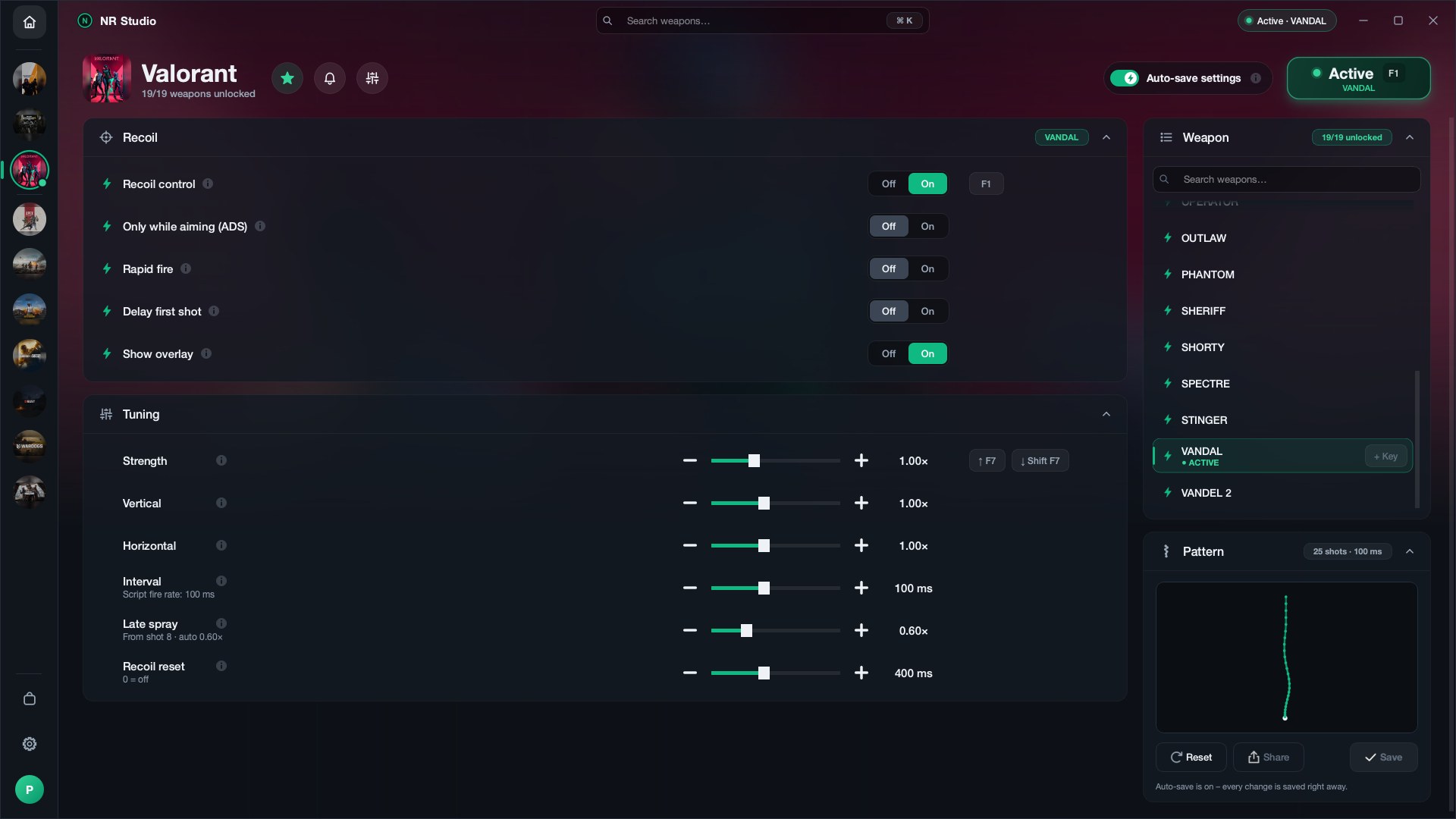
- Choose the game, then the weapon — purchased scripts are unlocked.
- Enable recoil (toggle or F1) and hold the mouse button — NR compensates the recoil.
- Per-weapon tuning: strength, vertical, horizontal & interval. ADS mode and panic key included.
- 5
Switching devices
The app runs on one PC at a time (device lock). New PC? Use "Log out from all devices" in your account settings, then sign in on the new machine.
Go to settings
Download option: use scripts as files
If you bought "App + Download", you'll find all scripts as a ZIP in your account. Here's how to use the files without the app and without a subscription:
- Download the ZIP in your account under "My purchases & downloads" and unpack it.
- Install AutoHotkey from autohotkey.com (free) — or use your mouse software's profiles instead.
- Start a script file by double-clicking it, open the game and press F1 to activate.
- Adjust the recoil strength directly in the file if needed (value at the top of the file).
Questions about the setup?
Our team is happy to help — the FAQ answers the most common questions.